Image to EXP Conversion Made Easy for Embroidery Designers
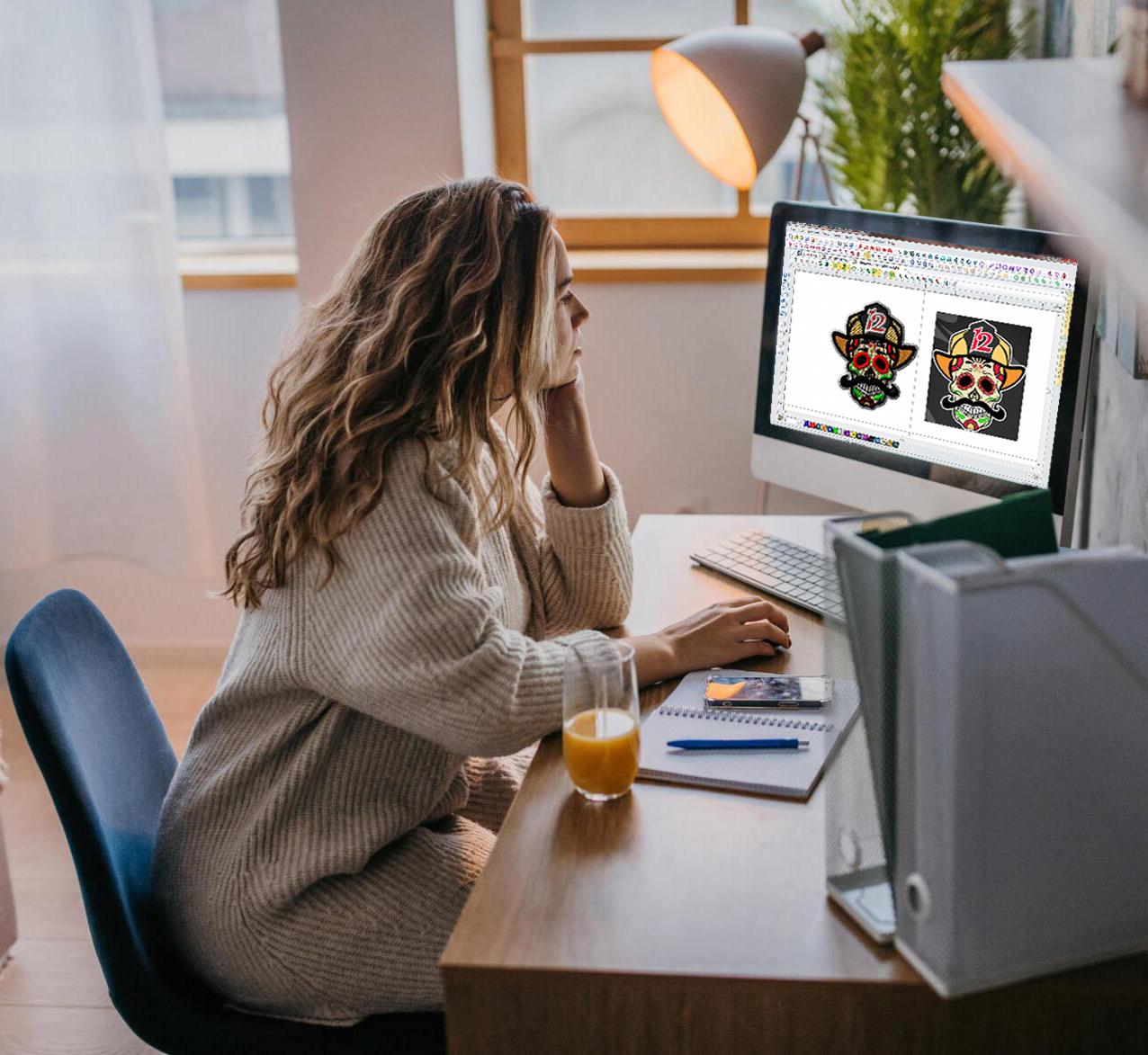
Hey there, fellow embroidery designers! Turning a clean logo, vibrant illustration, or customer-submitted photo from a simple image file into a stitch-ready masterpiece is one of the most satisfying parts of the job. For anyone working with Melco machines or commercial setups that rely on the EXP format, that transformation needs to be smooth, accurate, and efficient. EXP files contain precise stitch data—needle coordinates, thread sequence, density values, trims, jumps, and underlay instructions—that tell your Melco exactly how to move and when to change colors. Get it right, and your designs run fast with beautiful results; get it wrong, and you’re dealing with puckered fabric, thread breaks, or unhappy clients. The good news is the modern workflow makes converting image to EXP format straightforward and reliable, even if you’re juggling multiple client jobs or tight deadlines.
Why EXP Remains a Go-To Format in Commercial Shops
EXP was developed specifically for Melco embroidery systems, and it still holds a strong place in professional environments because of its straightforward structure and excellent compatibility. The format keeps files compact while storing everything the machine needs: stitch paths, color stops, automatic trims, and even special commands for appliqué or sequin placement.
Unlike some proprietary formats that lock you into one brand ecosystem, EXP plays nicely with most modern multi-head controllers. Shops appreciate that they can digitize once in their favorite software and export EXP for production without worrying about format translation errors. For designers serving contract decorators or corporate clients, that universal reliability saves rework and keeps deadlines intact.
Start with a Clean, Print-Ready Image
The quality of your EXP file is directly tied to the quality of the starting image. Begin by opening the JPG, PNG, or scanned artwork in any basic editor. Remove backgrounds completely—transparent or solid white prevents the software from misinterpreting stray pixels as stitchable areas.
Boost contrast so outlines are crisp and defined. Reduce the color palette aggressively—aim for 8 to 15 solid shades that match real thread colors from brands like Madeira or Isacord. Eliminate tiny details smaller than 3–4 mm; they almost always fill in or disappear during stitching. For logos or text-heavy designs, ensure lettering is at least 5 mm tall and uses blockier fonts whenever possible.
Crop tightly around the subject and resize to your intended embroidery dimensions right away. Scaling after digitizing distorts stitch angles and density, so do it early.
Choosing Software That Exports Clean EXP Files
You need digitizing software that imports images well and exports reliable EXP files. Popular choices among professionals include:
- Wilcom EmbroideryStudio – industry benchmark for precision and path optimization
- Hatch Embroidery – excellent auto-digitizing, realistic simulation, strong EXP export
- Melco DesignShop – native EXP support, seamless if you already run Melco machines
- Embrilliance StitchArtist – affordable, intuitive, great for small-to-medium shops
Ink/Stitch (the free Inkscape extension) also handles EXP export surprisingly well for simpler designs. Pick a program with strong 3D stitch simulation, manual editing controls, and thread palette matching—you’ll rely on those previews and tweaks to catch problems early.
Step-by-Step Conversion Workflow That Works
- Import the cleaned image and lock it as a reference layer.
- Run auto-digitizing for a quick first pass (perfect for simple logos and clipart).
- Switch to manual mode and trace every major element separately: background fills, mid-layer shapes, outlines, text, accents.
- Assign stitch types: satin for borders and lettering (gives that glossy pop), tatami for larger fills (even coverage), running stitches for fine details or light underlays.
- Add underlay to every object—edge-run under satin, grid or zigzag under fills.
- Apply pull compensation: widen satin columns slightly to counteract fabric push.
- Optimize paths: connect nearby objects, hide travel runs under existing fills, shorten trims, add tie-offs for secure starts and ends.
- Sequence colors logically: large background areas first, overlapping details later, small accents last.
- Preview in realistic 3D simulation—check density, pull effects, and backside appearance.
- Export as EXP with the correct hoop size, centering, and machine version settings.
Save both your working file and the final EXP export with clear names so you can locate them quickly later.
Testing and Fine-Tuning for Production-Ready Results
Export the EXP file and stitch a sample on scrap fabric matching your final project—same weight, stretch, and color. Watch the first few colors carefully. Look for:
- Puckering → reduce density or add more underlay
- Small text filling in → enlarge letters or add extra underlay
- Registration drift → review color sequence and compensation
- Thread breaks → shorten jumps and optimize paths
Make small adjustments back in the software, save a new version, and test again. One solid sample guarantees success on the full production run and saves expensive blanks from becoming scrap.
Quick Habits That Save Time and Materials
- Keep stitch counts reasonable (under 50,000 for most home or small-shop jobs)
- Use high-quality thread that matches your software’s palette previews
- Vary stitch angles to distribute pull evenly across the design
- Group similar colors to minimize thread changes
- Always test on the exact fabric type you’ll use in production
These small routines separate average work from the kind that turns first-time clients into repeat customers.
Conclusion
Converting images into EXP embroidery files is straightforward when you follow a smart, modern process: clean image preparation, thoughtful stitch choices, proper underlays and compensation, optimized paths, realistic previews, and thorough testing. When you do it this way, your Melco machines run efficiently, your designs look expensive, and your finished pieces consistently impress. Whether you’re personalizing apparel, creating patches, or building a custom brand, mastering this conversion puts professional-quality results within reach. Grab your next image, open your digitizing software, and start building that perfect EXP file. Your next embroidered project is waiting to shine—one clean, confident stitch at a time.

 English
 Arabic
 French
 Spanish
 Portuguese
 Deutsch
 Turkish
 Dutch
Dutch
 Russian
 Romaian
 Portuguese (Brazil)
 Greek
Greek